
Browser Game Audio Checklist: Fix Silence and Avoid Echo
By eggverse · · 5 min read

If a browser game is silent, check its sound control if one is provided, the browser's sound settings and the device receiving the audio. If you hear an echo, identify every device and call producing sound. Change one thing at a time so you know which step helped.
These are different problems. Turning every volume control up can make an echo worse. Muting every phone can hide an important cue. Start by describing what you hear: nothing, the wrong device, two copies of the same sound, or another person's voice coming back.
Map the sound before changing it
A group session may include a game tab, a music tab, a television, headphones and a voice call. Draw a quick map in words:
- Game runs on: ___
- Game should be heard through: ___
- Conversation runs on: ___
- Other sound sources: ___
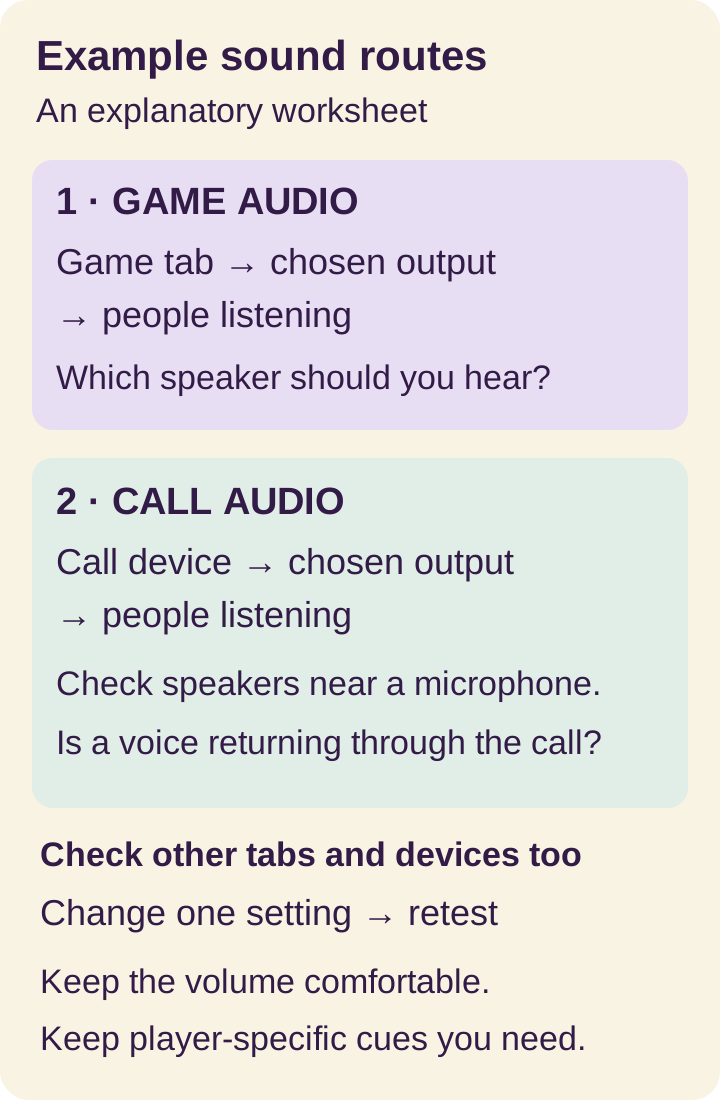
For a living room shared display, you might choose the television as the main game sound source. For remote play, each person may use headphones on their own device. Choose a sensible arrangement for the game rather than assuming one audio setup fits every mode.
For shared screen setup, open Couch Play; browse the games catalogue to choose a game.
When you hear nothing
Click or tap to interact with the page, then check its sound control if one is provided. Browsers can restrict sound that starts automatically. A silent preview is not proof that the game's audio is broken, especially if the preview is intentionally muted.
These settings guides are for desktop browsers; phone menus and available controls can differ. Follow the help for your browser and device.
Then check whether the browser is allowing sound for the site. Chrome documents site specific sound permissions. Firefox documents autoplay restrictions and site specific choices. Prefer a change for the site you intend to hear rather than loosening preferences for every website.
Finally check the output device. The computer might still be sending audio to headphones, a monitor or another connected device. A television picture and a television sound route are separate settings. If the display uses HDMI, consult the computer manufacturer's instructions for choosing that output.
| Test | Result | What to investigate next |
|---|---|---|
| Start or interact with the game | Sound begins | Automatic playback was a possible factor |
| Check the game's sound setting, if present | It was muted | Retest after changing only that setting |
| Play another known sound on the device | Also silent | Device volume or output route |
| Other sounds work, game remains silent | Device can produce sound; cause still unresolved | Check game/tab muting, browser settings and device audio routing before reporting a game fault |
The table narrows the problem. It does not diagnose every cause, and you do not need to change all four things if the first step resolves it.
When the sound comes from the wrong place
Ask someone to identify the speaker physically producing the audio. This catches simple mistakes: the television is showing the game while a laptop under the table is playing it, or Bluetooth headphones in another room are still selected.
Choose the intended output, play a short sound and confirm it from the seats. Keep the level comfortable before the group joins. A sound check should not require a sudden loud effect to prove the speakers work.
If only a particular game cue is difficult to hear, do not immediately raise the overall volume. Read the game's rules and look for its visual information too. Whether a game can be played comfortably without a particular sound needs checking game by game.
When you hear duplicate sound or an echo
Pause unrelated music and videos first. Then silence one suspected duplicate source at a time. If two devices are playing the same game audio, choose the one the group should hear and check that reducing the other does not remove private or player specific information.
If a remote caller hears their own voice returning, check whether nearby speakers are feeding it back into a microphone. Headphones or a single active call device in the room can make the arrangement easier to manage. Do not leave several nearby devices broadcasting the same conversation while trying random game settings.
For a hybrid gathering, write down who is responsible for the call audio. People sharing one room need a plan for hearing remote friends without producing multiple copies of their voices.
Confirm the fix during practice
After changing one setting, repeat the same test. “We changed five things and it seems better” gives you little to use next time. “Choosing the TV as the output restored sound” is a useful record.
Before a meaningful round, check that people can hear the information the selected game expects them to use. If the arrangement remains unreliable, choose a game the group can comfortably follow with the cues available.
Should everyone mute their phone in Couch Play?
Do not make that a universal rule. Identify which device should provide shared sound, then check the selected game's phone cues before changing individual devices.
Does allowing autoplay fix every silent game?
No. A muted game, wrong output, disconnected headphones or an application fault can produce the same symptom. Use the sequence above to distinguish them.
Where should I start if browser game sound is missing?
Click or tap the page, check its sound control if available, then check browser sound settings and the intended output device. Change one setting and repeat the same test before trying another.